The graphics have the power to make or ruin an intensive game session. Imagine being able to play your favorite game with clear, sharp graphics that highlight every little detail. Every gamer longs for that level of visual clarity. However, how can you get the optimal gaming display settings for clarity to bring your virtual world to life?
In order to increase sharpness, improve colors, minimize motion blur, and achieve fluid gaming, we’ll go over how to precisely adjust your display settings in this article. The correct settings can significantly enhance your experience, whether you’re playing first-person shooters, racing games, or open-world role-playing games. Now let’s go specific!
The Power of Clarity: Why It’s Essential for Gaming Performance?
Gaming isn’t just about performance; it’s about the visual experience. When you’re immersed in a game, every detail matters—from the smallest textures to fast-moving objects. Best gaming monitor settings for clarity helps you see every element clearly, ensuring that you don’t miss crucial details or suffer from blurry visuals.
The settings we’ll discuss affect several aspects:
- Sharpness: Ensures details are clear and visible.
- Contrast and Brightness: Balances the difference between light and dark, making scenes more lifelike.
- Color Accuracy: Ensures vibrant, true-to-life colors that match the developer’s intention.
- Refresh Rate: A higher refresh rate (e.g., 120Hz, 144Hz, 240Hz) allows for smoother motion and clearer visuals, especially in fast-moving games like racing and FPS.
- Field of View (FOV): Adjusting the FOV setting can expand the visible game world, enhancing your visual clarity in expansive games like RPGs.
Ultimately, the right monitor settings help you stay competitive, especially in fast-paced genres like first-person shooters or racing games, where every fraction of a second counts.
Step-by-Step Guide to the Best Gaming Monitor Settings for Clarity
1. Adjusting Resolution for Maximum Clarity
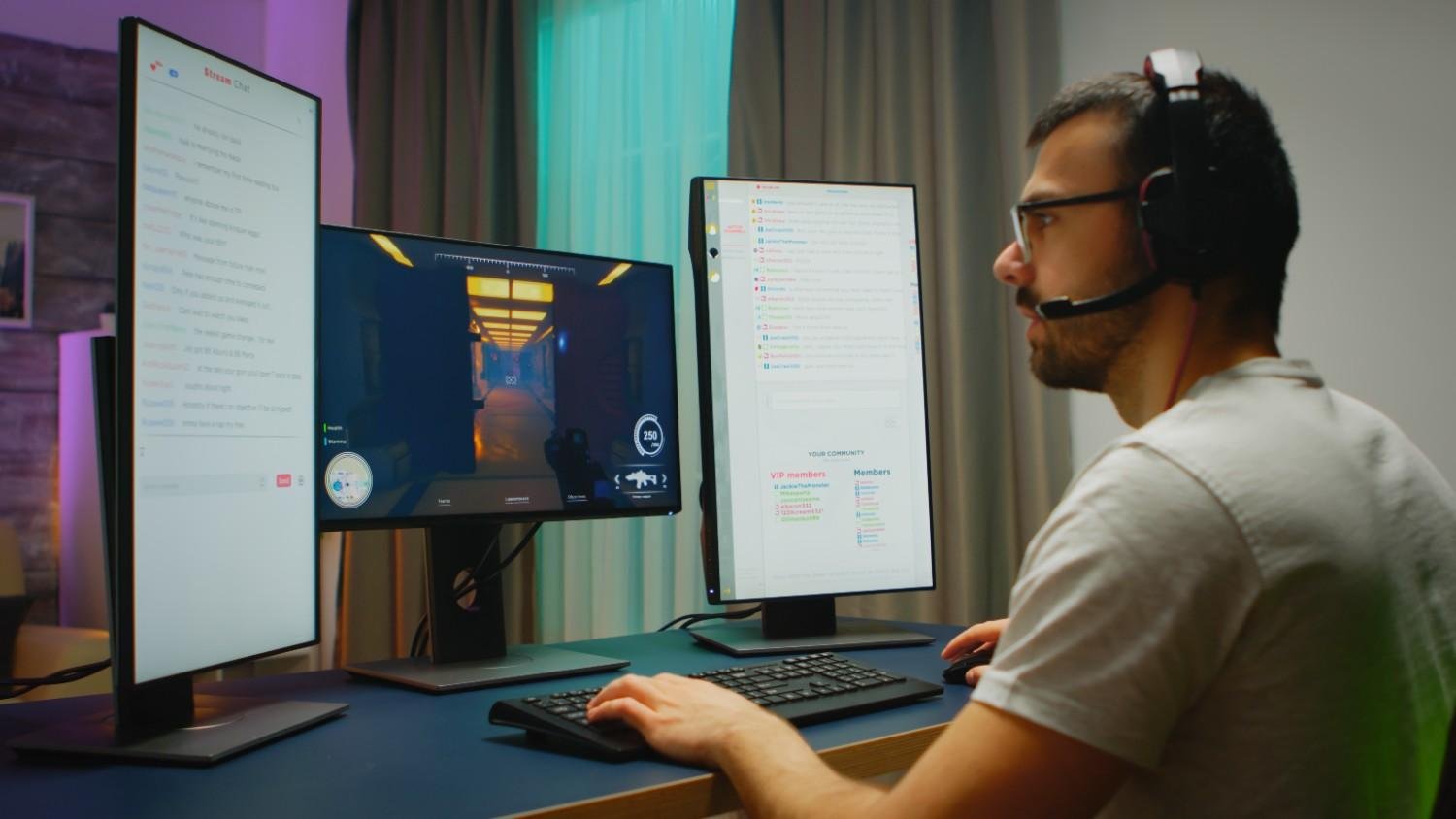
The first step in optimizing your gaming monitor for clarity is to ensure you’re using the highest resolution your monitor supports. A higher resolution provides more pixels, which means more detail and sharper visuals.
- 1080p vs 1440p vs 4K:
- 1080p (Full HD) is standard and great for most gamers, especially those with mid-range systems.
- 1440p (QHD) offers a middle ground for those who want sharper images without overwhelming their GPU.
- 4K offers the highest resolution, ideal for those with top-tier systems who want ultra-crisp visuals.
Technical Tip: Always use the native resolution of your monitor to get the sharpest and clearest image.
2. Fine-Tuning Brightness and Contrast
Proper brightness and contrast settings are key for visual clarity. Too bright, and you might experience washed-out colors. Too dark, and you may miss important details in the shadows.
- Brightness: Set brightness based on the ambient light in your room. A good starting point is to adjust the brightness until you can comfortably see all the game details, but without it feeling too bright or harsh on the eyes.
- Contrast: Increase the contrast slightly to make darker areas stand out more, but avoid setting it too high, as it can make bright areas lose detail.
Technical Tip: A contrast setting between 50-70 and a brightness level around 75-80 is ideal for most gaming setups.
3. Enhancing Color Accuracy
Adjusting color settings is one of the most important steps when figuring out the best gaming monitor settings for clarity. It ensures that the colors you see are true to the game’s design, without being overly saturated or dull. You want the colors in your game to pop, but also to stay true to their original design. The best gaming monitor settings for clarity include adjustments to the color settings to make sure you’re not seeing overly saturated or unnatural colors.
- Color Temperature: Set your monitor to a “Neutral” or 6500K color temperature for a more natural, balanced color representation. “Warm” can make colors look redder, while “Cool” can add a bluish tint, which may not be ideal for clarity.
- Gamma: Correcting the gamma to ensure your shadows and highlights are well-balanced. A gamma setting of 2.2 is the industry standard and usually provides the best clarity and contrast in games.
- Color Depth and HDR: Set the color depth to 10-bit (if supported) for richer colors. Enabling HDR (High Dynamic Range) enhances contrast and detail in both dark and bright areas.
Technical Tip: Use the sRGB mode for accurate color representation, especially if you’re working with graphics or design alongside gaming.
4. Sharpening Image Details
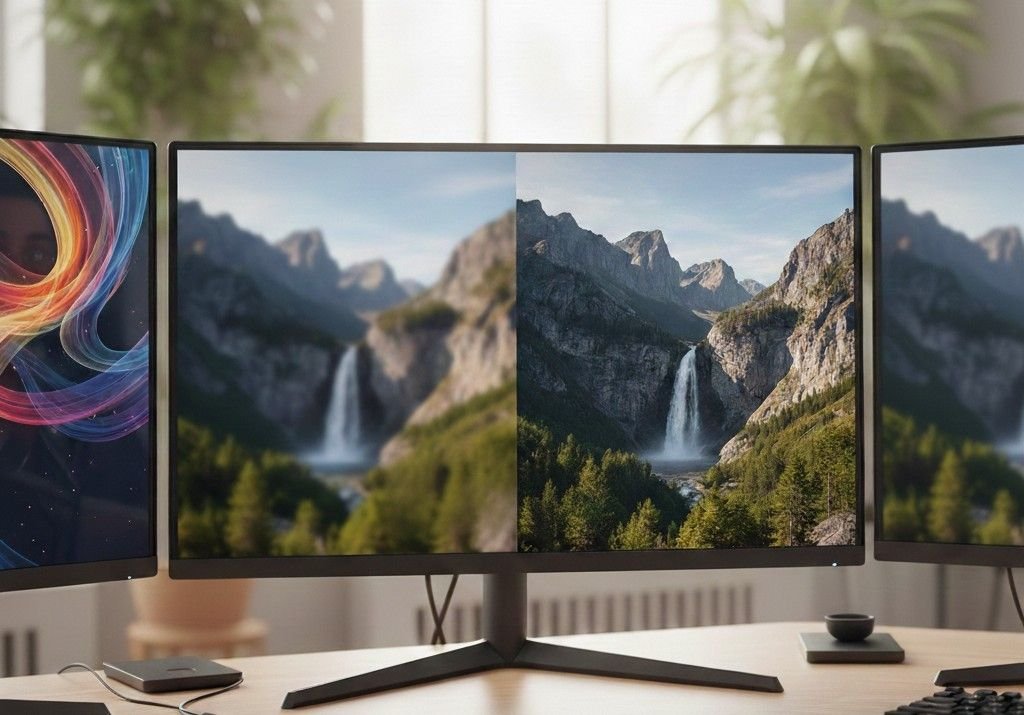
Many monitors come with built-in image sharpening features. By adjusting these settings, you can achieve the best gaming monitor settings for clarity, making the image look clearer, especially at lower resolutions.
- Sharpness Settings: Increase the sharpness to the level that enhances detail without making the image look overly grainy. Over-sharpening can introduce artifacts, which can reduce clarity.
- Response Time and Motion Blur Reduction: Look for settings like Overdrive or Motion Blur Reduction that can help reduce ghosting and improve the clarity of moving objects, especially in fast-paced games.
Technical Tip: Most monitors allow you to fine-tune response time. Set it to the fastest possible response for better clarity during quick movements.
5. Using Game Mode for Clarity
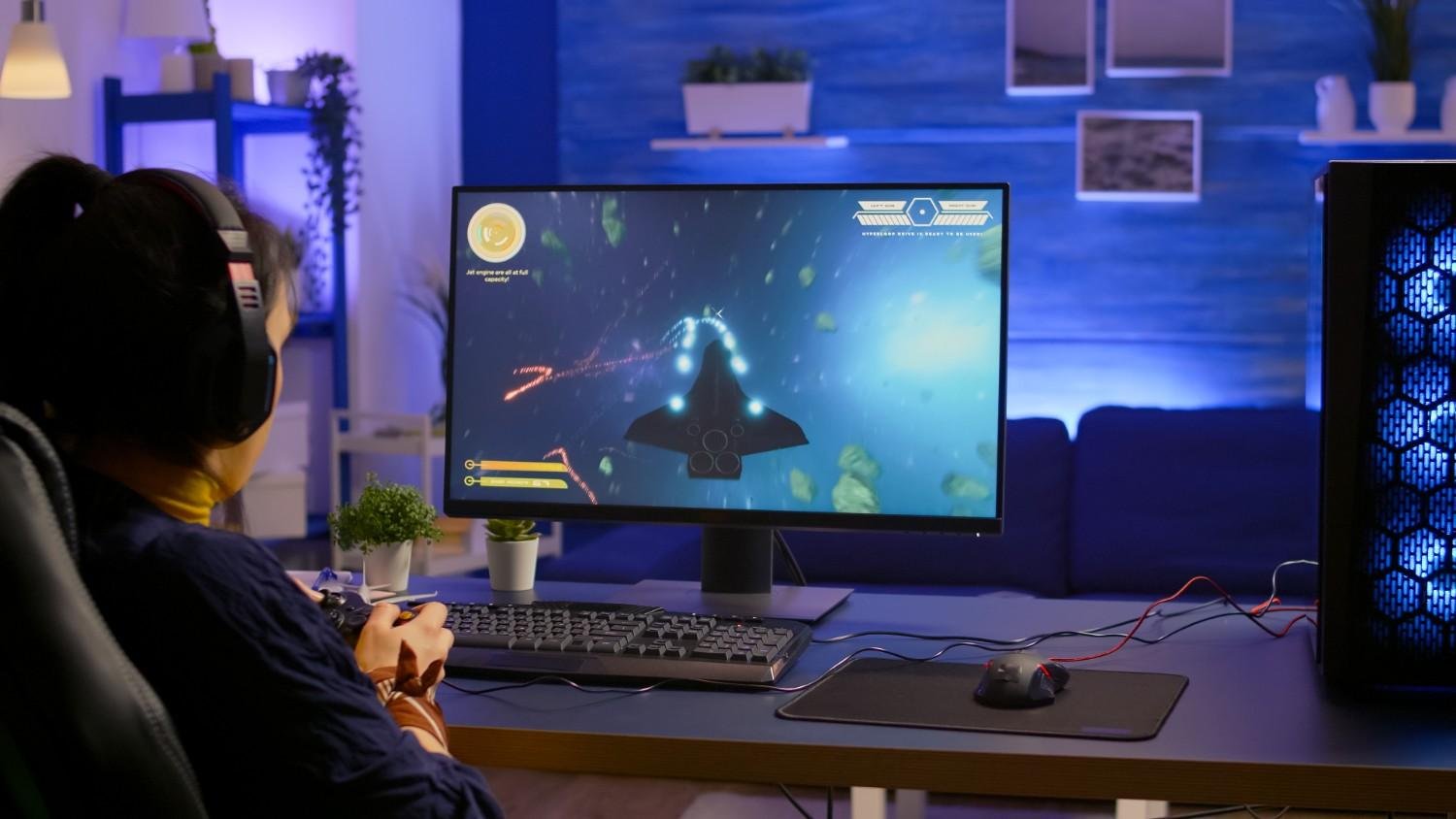
Many gaming monitors come with a Game Mode setting that automatically adjusts settings for the best performance in fast-paced games. This can enhance clarity by optimizing response time, contrast, and color settings.
- Game Mode: In this mode, the monitor automatically reduces input lag and optimizes the display settings to give you the best visual clarity in action-packed games.
Technical Tip: Make sure your Game Mode is activated in the monitor’s OSD (On-Screen Display) for a more immersive gaming experience.
6. V-Sync and G-Sync/FreeSync for Smooth, Clear Gameplay
While adjusting settings for clarity, it’s also crucial to focus on smooth gameplay. Screen tearing can make the game look blurry and disjointed, affecting your ability to focus.
- V-Sync: This setting synchronizes your FPS with your monitor’s refresh rate, reducing screen tearing but may increase input lag in some cases.
- G-Sync/FreeSync: These technologies are great for reducing tearing and stuttering by dynamically adjusting the monitor’s refresh rate to match the frame rate output of the GPU. This is especially useful for high-performance gaming.
Technical Tip: For the smoothest, clearest visuals, enable G-Sync (for NVIDIA) or FreeSync (for AMD) if your monitor supports them.
7. Adjusting the Monitor’s Position
Sometimes the physical position of the monitor affects clarity. Ensuring the correct viewing angle can help you see details more clearly, particularly with IPS panels.
- Optimal Viewing Angle: Sit directly in front of the monitor to prevent color distortion or loss of contrast. Tilt and height adjustments can also help align the monitor to your eye level.
Technical Tip: Use a monitor stand or VESA mount to ensure proper ergonomic positioning for better visual comfort.
8. Advanced Features for Gaming Clarity
To further enhance clarity, consider these advanced settings for better control over your visual experience:
- Refresh Rate: The refresh rate defines how often the image is updated per second. A higher refresh rate (e.g., 120Hz, 144Hz, 240Hz) offers smoother gameplay and better clarity, especially for FPS or racing games.
- Black Equalizer: This feature enhances dark areas in games, helping you spot enemies hiding in shadows without washing out the entire image.
- Scaling: Adjust the scaling options to ensure that text clarity remains sharp, especially for MMOs or games with detailed user interfaces.
- Aspect Ratio: For ultrawide monitors, adjusting the aspect ratio can provide a wider field of view, making it easier to spot enemies or other important details in games like RPGs or FPS.
Technical Tip: Dual Monitor Setup is ideal for streamers or multitaskers. Be sure to adjust settings on both monitors for a consistent experience.
Frequently Asked Questions (FAQs)
1. How do I improve the sharpness of my gaming monitor?
Increase the sharpness setting on your monitor but avoid overdoing it, as excessive sharpness can introduce artifacts.
2. What is the best contrast setting for clarity?
A contrast setting between 50-70 usually provides the best balance for clear and detailed visuals.
3. Should I use V-Sync for better clarity?
V-Sync can help reduce screen tearing and improve visual clarity, but it may introduce input lag. Use it when needed for smoother visuals.
4. How do I adjust my monitor’s color settings for better clarity?
Set the color temperature to 6500K and use sRGB mode for accurate color representation.
5. What’s the best resolution for clarity in gaming?
1440p (QHD) offers an excellent balance between clarity and performance. 4K is ideal for high-end setups, while 1080p is suitable for most mid-range systems.
Unlock Your Full Gaming Potential
Achieving the best gaming monitor settings for clarity isn’t just about tweaking numbers—it’s about immersing yourself in a visually stunning experience that elevates your gameplay. The correct settings guarantee that you never miss a detail, identify your adversaries more quickly, and take pleasure in smoother, more colorful images, whether you’re engaging in competitive eSports or exploring large open areas. Take charge of your gaming experience, and you’ll see your performance rise. Clarity is a game-changer with the correct monitor settings, not simply a luxury.

Ryo Nakamura
View More PostsRyo Nakamura covers gaming news, updates, and industry trends. His writing keeps the community informed about new releases, patches, and competitive shifts, offering clear context and insight into how changes impact gameplay and the broader gaming landscape.